Timesheet Approvals: Why Payroll and Logged Hours Don’t Match

A weak timesheet approval process is often the main reason payroll totals do not match logged hours. In practice, this usually shows up as late reviews, post-approval edits, or misaligned cutoffs that leave HR working with outdated data. This guide helps you spot where the workflow breaks and how to create one reliable, payroll-ready record of employee hours.
Calculate your timesheet approval compliance rate

💡 Quick Summary
- Logged, approved, and payroll-ready hours are not the same: Time can still change during submission, review, correction, and finalization, which is why payroll may not match the live timesheet.
- Most discrepancies come from four process failures: Retroactive edits, misaligned PM and HR deadlines, inconsistent category mapping, and manual spreadsheet cleanup.
- TACR measures approval discipline: The Timesheet Approval Compliance Rate indicates the percentage of expected timesheets approved before the payroll cutoff.
You can fix the timesheet discrepancies with a 3-Step Method:
- Lock approved timesheets
- Synchronize submission and payroll deadlines
- Export only approved, finalized data.
Timesheet Approvals
- What Is a Timesheet Approval Process?
- Why Do Timesheets Not Match Payroll?
- 4 Timesheet Approval Failures That Cause Payroll Errors
- How to Handle Timesheet Discrepancies Before Payroll
- How to Fix the Timesheet Approval Process in 3 Steps
- Are Your Approvals Ready for Payroll? Calculate TACR
- How Much Do Manual Timesheet Approvals Cost Payroll Teams?
- How TrackingTime Helps Teams Create Payroll-Ready Timesheets
- Common Timesheet Approval Mistakes
- Payroll Accuracy Starts Before Payroll
What Is a Timesheet Approval Process?
A timesheet approval process is the workflow employees and managers use to submit, review, correct, approve, and finalize logged hours before those hours are used for payroll, billing, reporting, or compliance.
Employee time tracking records when work happens, but recording time does not automatically make those hours payroll-ready.
Each entry should move through a clear status, such as not submitted, submitted, approved, rejected, corrected and resubmitted, and finally locked for payroll. A reliable process also defines who is responsible for each stage and when it must be completed.
→ Employees: Record and submit their hours.
→ Managers: Review, approve, or reject the entries.
→ HR or Payroll: Process payroll using only approved and locked employee hours.
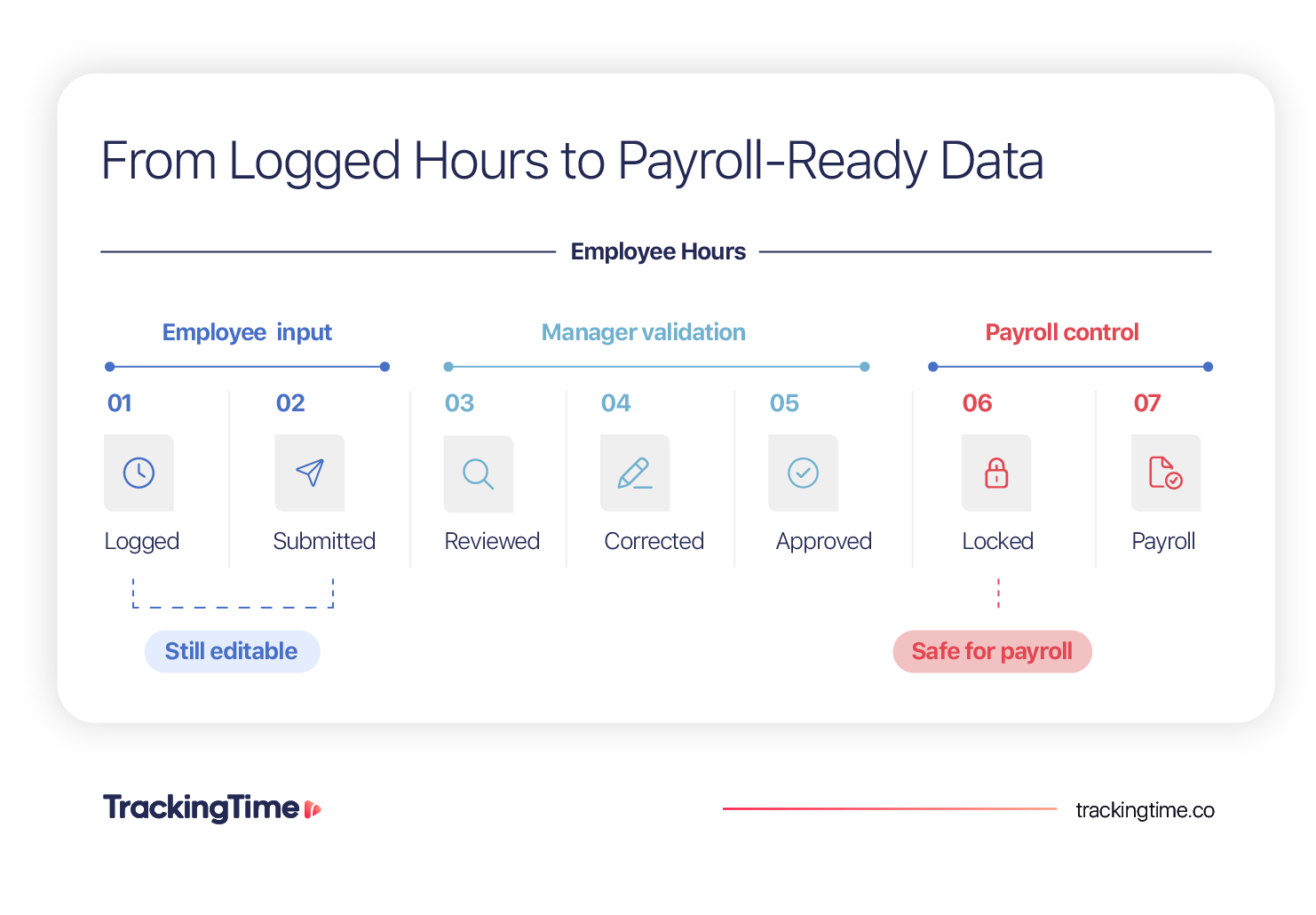
Why Do Timesheets Not Match Payroll?
Timesheets do not match payroll when HR exports hours before all entries are approved, employees change records after review, payroll categories do not match time tracking categories, or data is manually edited between systems.
The most common problem is that the time tracker and payroll team are working from different versions of the same period. Submitted hours may still be under review, approved hours may still be editable, and the live timesheet may no longer match the file HR originally exported.
According to ADP’s 2024 Global Payroll Survey, global payroll accuracy averaged only 78%, and 32% of organizations needed two or more pay cycles to correct mistakes.
Logged Hours vs. Submitted Hours vs. Approved Hours vs. Payroll-Ready Hours
| Comparison point | Logged hours | Submitted hours | Approved hours | Payroll-ready hours |
|---|---|---|---|---|
| What it represents | Time recorded by the employee | Time sent for manager review | Time accepted by a manager | Approved, finalized, categorized, and locked data |
| Can it still change? | Yes | Possibly | Only if reopened or unlocked | No, unless formally reopened |
| Safe for payroll? | ⛔️ No | ⛔️ No | ❕ Not yet | ✅ Yes |
It’s important to stress that approved hours are not automatically payroll-ready. They still need to be finalized, categorized correctly, and protected from further edits before HR can treat them as the definitive payroll record.
In practice, timesheet discrepancies and payroll mismatches are usually workflow-control problems: the organization has not defined which version is authoritative, when approvals close, or when the data becomes locked for payroll.
4 Timesheet Approval Failures That Cause Payroll Errors
Payroll errors usually begin before payroll processing, when the approval workflow fails to create one final, authoritative version of employee hours.
1. The Retroactive Editing Loophole
A very common failure point occurs when a manager approves the timesheet period, HR generates the payroll export, and an employee later adds, removes, or changes logged hours. The live timesheet now shows a different total from the file already sent to payroll.
When this happens, HR cannot immediately tell which version is authoritative or why the total changed. The root cause of this problem is that approved entries remained editable after review. Legitimate corrections should still be possible, but they should follow a controlled process:
How to properly correct recorded hours
- Reopen the affected entry or period
- Document the reason for the correction
- Update and resubmit the hours
- Require manager reapproval
- Lock the corrected version and regenerate the payroll export
👉 Approved timesheets should never change silently after payroll processing has begun.
2. The PM-to-HR Timeline Disconnect
Payroll discrepancies also appear when employees, managers, and HR work against different deadlines. Employees may still be submitting hours and managers reviewing backlogged timesheets while HR has already started payroll extraction.
In these situations, payroll is built from an incomplete snapshot rather than the final approved period. Payroll should not begin until the approval window has formally closed and all required corrections have been completed.
3. Unmapped Categorization and Taxonomy Gaps
Payroll data can still be wrong even when the total number of hours matches. In those cases, the problem is how those hours are categorized.
This issue occurs when the time tracking system and payroll label work differently. Regular hours may include overtime, breaks may be paid in one system and unpaid in another, or PTO and sick leave may use labels that do not match payroll earning codes.
| Time tracking category | Payroll interpretation risk |
|---|---|
| Regular hours | May include hours that payroll should treat as overtime. |
| Overtime | Eligibility rules or pay multipliers may differ. |
| Breaks | May be recorded as paid time in one system and deducted in another. |
| PTO or sick leave | May be excluded or mapped to the wrong earning code. |
| Holidays | May require a separate payroll category or pay rule. |
| Manual adjustment | May lack a documented reason, owner, or approval trail. |
| Unassigned time | Cannot be processed reliably until it is categorized. |
When categories are not aligned, HR often has to reclassify entries manually after export. That creates another version of the data and makes it harder to trace why payroll changed.
📖 Recommended Read
Learn how to align payroll periods, approval deadlines, time categories, PTO, overtime, and exports so payroll receives one complete, approved, payroll-ready dataset.
4. The Spreadsheet Middle-Man
Many teams rely on a spreadsheet that one person manually cleans, reclassifies, or adjusts before payroll processing. This is a problem because the spreadsheet may contain formulas, mappings, and corrections that do not exist in the original timesheet system, while later changes in the source data no longer flow through automatically.
This also creates key person risk: if only one employee understands the spreadsheet logic, payroll accuracy depends on that person being available and remembering every manual step. If they are absent, leave the company, or make an undocumented change, the process becomes difficult to reproduce or audit.
How to Handle Timesheet Discrepancies Before Payroll
When payroll and timesheet totals do not match, you can fix the current period through a controlled reconciliation process. Here’s how to do it:
1. Freeze the Payroll Snapshot
Stop further edits, record the export time, and identify which entries were approved at that moment.
2. Compare the Relevant Totals
Compare logged hours, approved hours, and payroll-ready hours. Do not rely only on the current live timesheet, because it may have changed after the original export.
3. Find the Source of the Difference
Check for:
- Late submissions
- Rejected entries
- Post-approval edits
- Missing overtime
- PTO or break mapping issues
- Manual spreadsheet changes
- Duplicate or missing records
4. Correct the Affected Data
Reopen only the affected entry or period, document the discrepancy, complete the required correction and reapproval, and regenerate the payroll export from the finalized source.
5. Record the Root Cause
Use a simple discrepancy log to document what changed, why it happened, how it was corrected, and what should prevent it from recurring.
Example:
| Discrepancy | Cause | Owner | Correction | Preventive change |
|---|---|---|---|---|
| Payroll export shows 78 hours, but the live timesheet shows 82 | Employee added four hours after manager approval. | Operations manager | Reviewed the added hours, reapproved the timesheet, and regenerated the export | Lock approved periods before payroll extraction and require formal reopening for later corrections |
This process fixes the current payroll issue. The approval framework later in the guide explains how to prevent the same discrepancy from happening again.
How to Fix the Timesheet Approval Process in 3 Steps
Use the following 3-Step practical method to create a controlled workflow in which hours are submitted, reviewed, corrected, approved, locked, and only then exported for payroll.
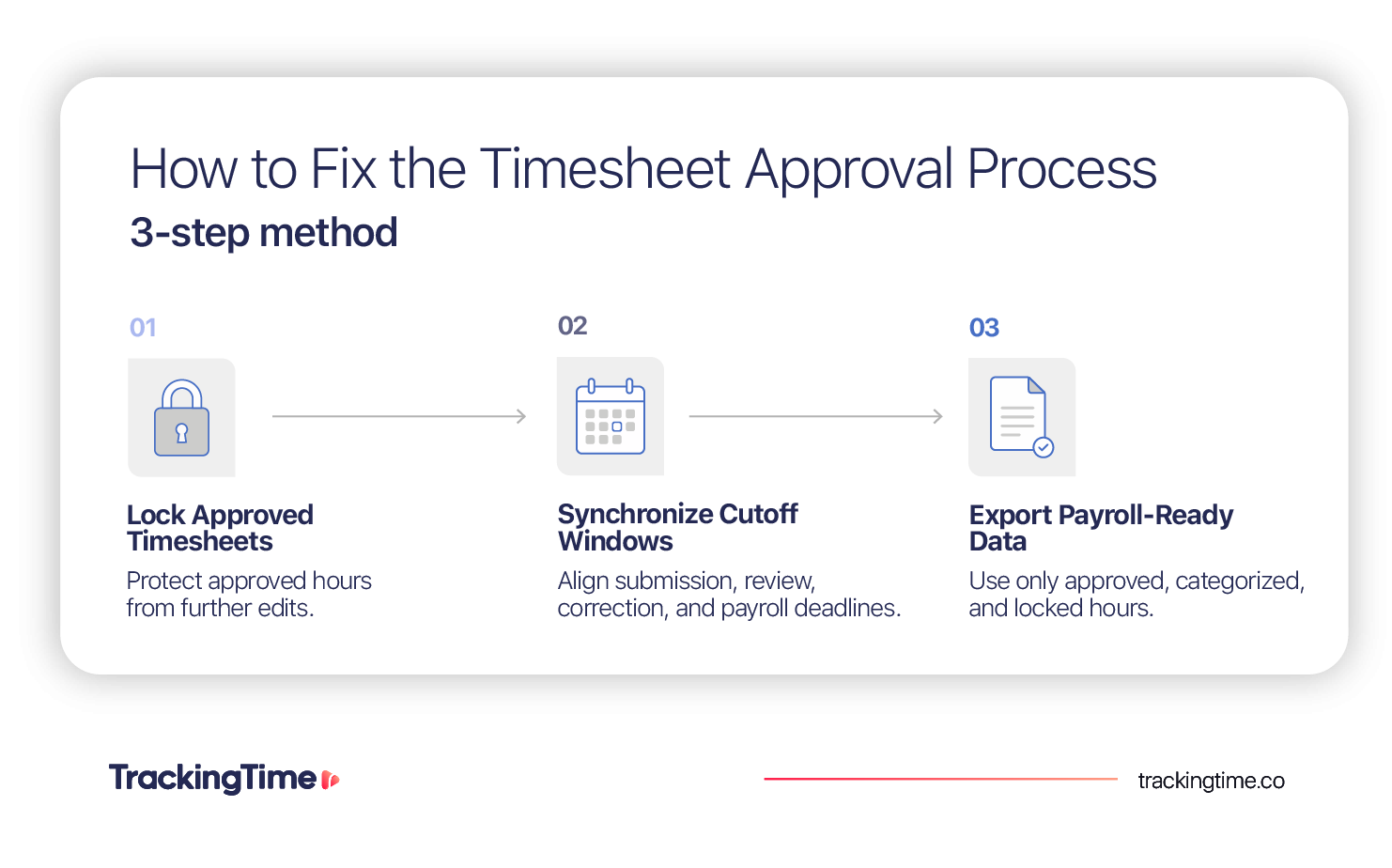
Step 1: Lock Approved Timesheets After Review
Approval is not enough if employees can still change the data afterward. Once a manager approves a timesheet, the accepted hours should become protected from further edits and serve as the official source for payroll.
Rejected entries should return to the employee for correction before approval. If a legitimate change is needed after the period has been locked, the workflow should require a formal reopening, a documented reason, correction, resubmission, and manager reapproval.
📋 A reliable approval record should show:
- Who submitted the timesheet
- Who reviewed and approved it
- When approval occurred
- Whether the period was later reopened
- Why any post-approval correction was made
TrackingTime supports a submit, review, approve or reject, correction, resubmission, and lock workflow. Approved entries can be locked by period or through a Block Hours policy.
Step 2: Synchronize Submission, Approval, and Payroll Cutoffs
Timesheet approvals should follow one fixed sequence, with each stage closing before the next begins.
💡 Recommended sequence:
Tracking closes → Timesheets are submitted → Managers review → Corrections are completed → Final approvals close → Approved hours are locked → Payroll export begins
Use a shared cutoff schedule so every owner knows when their part is due:
| Stage | Owner | Example deadline | Required output |
|---|---|---|---|
| Time entry completion | Employee | Day 1, 12 PM | Complete timesheet |
| Submission | Employee | Day 1, 3 PM | Submitted hours |
| Manager review | Manager | Day 2, 12 PM | Approved or rejected entries |
| Correction and resubmission | Employee | Day 2, 4 PM | Corrected timesheet |
| Final approval and lock | Manager / Operations | Day 3, 10 AM | Payroll-ready hours |
| Payroll extraction | HR / Payroll | Day 3, after 10 AM | Final payroll file |
These deadlines are an example and should be adjusted to the company’s payroll frequency, team size, and correction volume. The important rule is that payroll extraction should begin only after approvals are complete and the period has been locked.
Step 3: Export Only Approved, Payroll-Ready Data
Payroll should use one finalized dataset, not a mix of submitted, pending, rejected, and manually edited entries.
Before exporting, filter out any timesheet that is still awaiting review or correction. The payroll file should include only approved hours from locked periods, with categories already aligned to the company’s payroll structure.
Use one controlled export and record:
📅 Approval period
🕒 Export date and time
🗂️ File version
👥 Included employees
✅ Approval status
🔄 Category mapping used
If spreadsheet transformation is unavoidable, keep the original export unchanged, document every mapping or adjustment, and restrict editing to an authorized owner.
Are Your Approvals Ready for Payroll? Calculate TACR
The Timesheet Approval Compliance Rate (TACR) measures the percentage of expected timesheets that managers approve before the payroll cutoff. TACR helps operations and HR identify whether approval delays are putting payroll data at risk.
Timesheet Approval Compliance Rate Calculator
TACR = On-Time Approved Timesheets ÷ Total Expected Timesheets × 100
Enter both values above to calculate your Timesheet Approval Compliance Rate.
Variables
- On-Time Approved Timesheets: Complete timesheets approved before the payroll cutoff.
- Total Expected Timesheets: All employee timesheets due for the review period.
- Review Period: The weekly, biweekly, semimonthly, or monthly payroll cycle being measured.
- Approval Cutoff: The deadline by which manager review and required corrections must be complete.
How to Calculate TACR
- Define the approval period.
- Count all timesheets expected for that period.
- Count only the timesheets approved before the cutoff.
- Divide on-time approvals by expected timesheets.
- Multiply the result by 100.
Approval performance is a useful signal of data quality. According to CloudPay’s 2024 Global Payroll Efficiency Index, “only 73.82% of global payroll runs were approved on the first attempt, meaning roughly one in four required changes before approval”.
Example
A company expects 80 timesheets before payroll cutoff. Managers approve 74 on time.
TACR = 74 ÷ 80 × 100 = 92.5%
Six timesheets missed the cutoff and may require payroll follow-up or delayed correction.
How to Interpret TACR
| TACR result | What it means |
|---|---|
| 95% or higher | Strong internal approval discipline |
| 90%–94% | Recurring approval delays require review |
| Below 90% | Payroll may be relying on incomplete or late data |
How Much Do Manual Timesheet Approvals Cost Payroll Teams?
According to ADP’s 2024 Global Payroll Survey, more than one in five payroll teams (22%) reported spending over 30 hours every week reconciling payroll and HR data manually. That is time pulled away from higher-value work, and it grows every pay cycle that approvals, categories, and exports stay disconnected.
How TrackingTime Helps Teams Create Payroll-Ready Timesheets
TrackingTime turns employee time tracking into a structured review process before hours reach payroll. Employees submit their recorded hours, and managers can review them by employee and date range rather than working through disconnected entries.
With TrackingTime, managers can approve a complete period in bulk or reject selected entries with a comment while approving the rest. Rejected hours return to the employee for correction and resubmission, keeping the entire review cycle inside the same workflow. Each time entry has a visible status:
- Not submitted: Recorded but not yet sent for review.
- Submitted: Waiting for manager review.
- Approved: Formally accepted and ready for the next payroll or billing step.
- Rejected: Returned to the employee for correction.
These statuses appear across Hours, Timesheet, and Approvals, allowing employees and managers to see what is still pending, what requires correction, and what has been formally accepted.
Teams can close the period manually or use a Block Hours policy to automatically lock entries outside a defined correction window. This preserves one stable version of the data after payroll preparation begins. From the centralized Approvals area, managers can validate:
- Employee hours
- Time off requests
- Timecards
- Submitted, approved, and rejected entries
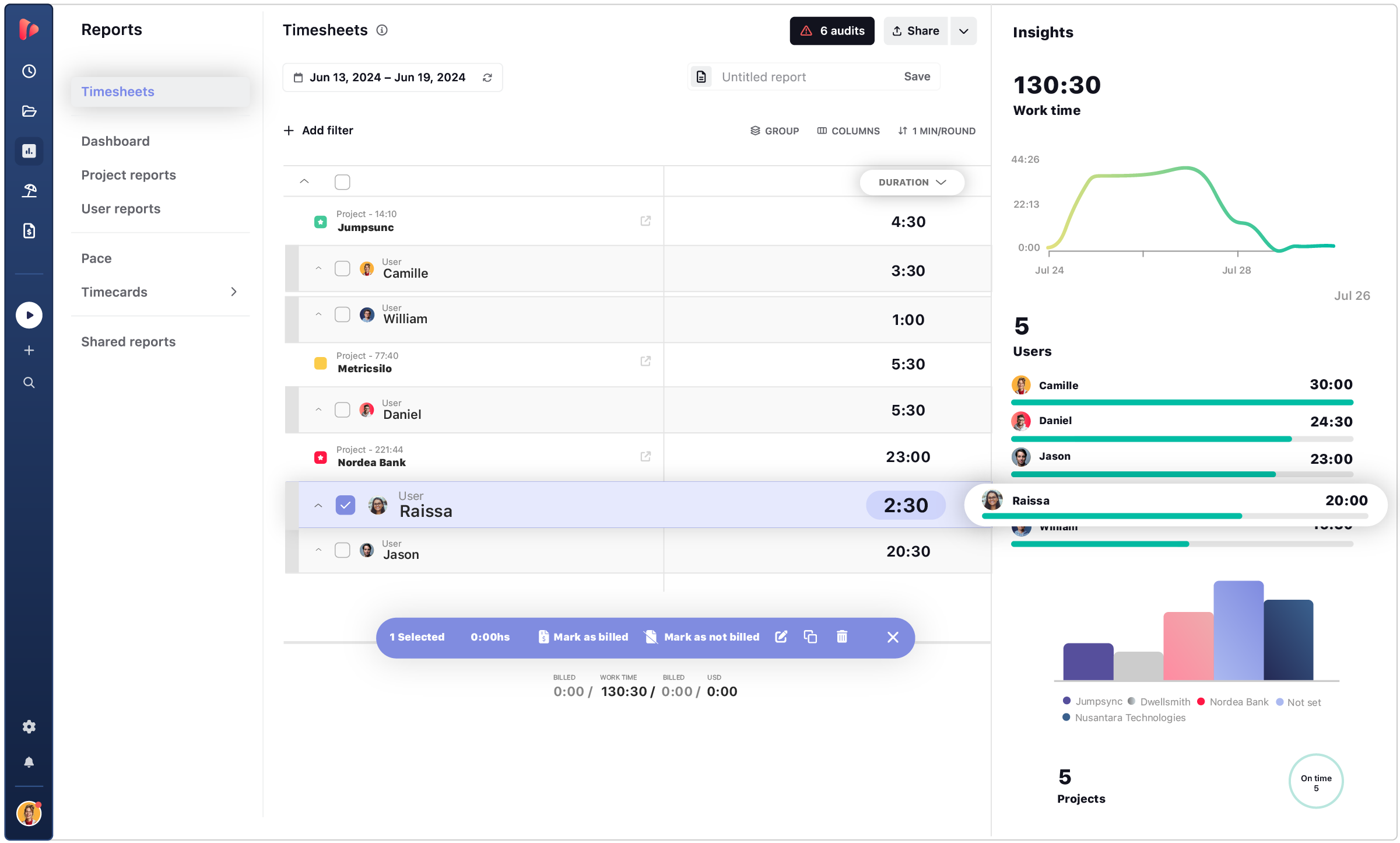
TrackingTime can then generate timecards using recorded hours, approved absences, and employee work schedules. Approved timecards can be exported in PDF, Excel, or CSV for payroll processing or formal recordkeeping.
This creates a traceable path from recorded hours to reviewed, corrected, approved, locked, and exportable payroll data.
⏱️ Explore Timesheet Software in TrackingTime
See how TrackingTime helps teams review, approve, and finalize employee hours before payroll.
Common Timesheet Approval Mistakes
Even a well-designed workflow can fail when teams rely on inconsistent habits, unclear ownership, or manual workarounds. These are the most common mistakes that create avoidable timesheet discrepancies and payroll errors.
- Treating logged hours as payroll-ready: Recorded time still needs review, approval, and finalization.
- Approving after payroll extraction: HR may process an incomplete or outdated version.
- Leaving approved entries editable: Post-approval changes can create a mismatch with payroll.
- Using different cutoff dates: Employees, managers, and HR end up working from different timelines.
- Mixing pending and approved hours: Unverified entries may enter the payroll file.
- Correcting categories in spreadsheets: Manual edits create a second source of truth.
- Reopening periods without reapproval: Corrected hours bypass the formal review process.
- Measuring submissions instead of approvals: Submitted timesheets may still contain errors.
- Ignoring rejected entries: Payroll can close while corrections are still unresolved.
- Treating every discrepancy as employee error: The real cause may be a broken workflow.
Payroll Accuracy Starts Before Payroll
Payroll errors may appear at the end of the process, but their cause usually starts earlier. When logged hours remain editable, approvals miss the cutoff, or payroll depends on manually adjusted spreadsheets, HR never receives one stable version of the data.
Reliable timesheet approvals give every entry a clear status, create time for correction, lock the accepted version, and export only payroll-ready hours. That turns employee time tracking into a controlled financial workflow instead of an end-of-month reconciliation task.
📊 ExploreTrackingTime’s Timesheets Software
TrackingTime’s timesheets software helps teams review submitted time, return incorrect entries for correction, approve complete periods, and lock accepted hours before payroll processing begins.
Frequently Asked Questions About Timesheet Approvals
Why do timesheets not match payroll?
Timesheets may not match payroll when hours are exported before approvals are complete, entries change after review, payroll categories do not align with time-tracking categories, or data is manually edited outside the approval system.
What is a timesheet approval process?
A timesheet approval process is the workflow used to submit, review, correct, approve, and finalize employee hours before they are used for payroll, billing, reporting, or compliance.
How do you handle timesheet discrepancies?
Temporarily lock the affected period, compare logged, approved, and payroll-ready totals, identify the source of the difference, correct the entry through the approval workflow, require reapproval, and regenerate the payroll export.
Can approved timesheets be edited?
Approved timesheets should usually be locked to prevent retroactive changes. When a legitimate correction is needed, an authorized user should reopen the period, document the reason, update the entry, and require approval again.
Who should approve employee timesheets?
Timesheets should be approved by a direct manager, team lead, project manager, or another reviewer who understands the employee’s work and can verify the hours before the payroll cutoff.
When should timesheets be approved before payroll?
Timesheets should be reviewed, corrected, approved, and locked before payroll begins extracting data. The cutoff should leave enough time to reject incorrect entries, make corrections, and complete reapproval.
Should payroll use submitted or approved hours?
Payroll should use only approved, finalized, and locked hours. Submitted hours are still awaiting validation and may contain missing, incorrect, or disputed entries.
What is a good timesheet approval compliance rate?
A company may use 95% or higher as an internal target for its Timesheet Approval Compliance Rate, or TACR. However, TACR measures approval timeliness only; payroll accuracy also depends on correct categories, locking rules, and controlled exports.


